1. Introduction
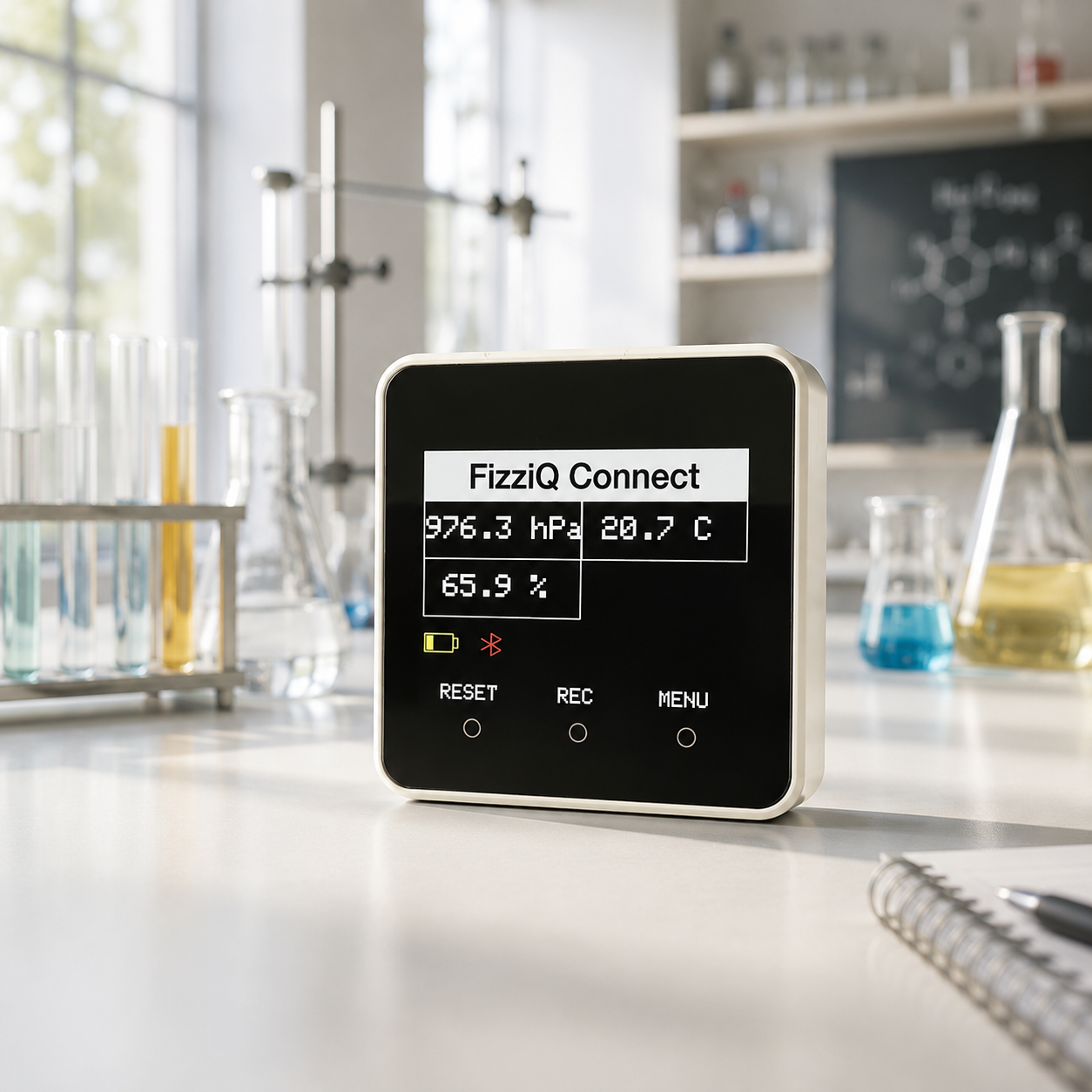
FizziQ Connect is an educational and scientific tool designed to be used in conjunction with the FizziQ application. It is used to collect and analyze data from various external sensors to study and understand different scientific and environmental phenomena.
FizziQ Connect is based on the M5 Stack microcontroller, which is small, portable, autonomous, and allows connecting a wide range of sensors at affordable costs.
External Sensors
I2C, analog, 1-Wire
Bluetooth BLE
Wireless connection
Graphical Display
Built-in touchscreen
Recording
3000 data points max
2. Box Contents and Specifications
2.1 Box Contents
- 1 x M5 Core 2 AWS Microcontroller with FizziQ Connect software
- 1 x USB charging cable
2.2 Technical Specifications
2.3 Safety Warnings
- FizziQ Connect must be used only in a supervised educational setting
- Do not open the device or modify internal components
- Do not expose to water, humidity, or extreme temperatures
- Do not use sensors delivering voltage higher than 3.3 V on the analog input
- Use only USB cables compliant with 5V specifications
3. Getting Started
- Charge FizziQ Connect using the USB cable connected to a computer or charger for at least 30 minutes. A battery level indicator is displayed in the device's receive mode.
- Choose a sensor and connect it with a Grove cable provided in the corresponding port. There is a keyed connector to prevent incorrect connection.
- Turn on FizziQ Connect by pressing the On/Off button for a few seconds. To turn off, press and hold this button for six seconds.
- At startup, FizziQ Connect will search for and display the connected sensors. The type of connected sensor will appear on the screen.
- Once the search is complete, the sensor values will be displayed on the screen, along with the battery level.
3.1 Connecting a New Sensor
To connect a new sensor:
- Disconnect the existing sensor
- Connect the new sensor
- Press the "Sensor Search" button at the bottom of the screen
5. Data Recording
Recording can be done in two ways:
5.1 From the FizziQ Application
- Connect the device to the application
- The external sensors then appear as internal sensors
- Data can be recorded directly in the application
5.2 Directly on the Device
- Press REC to start a local recording
- All data from all sensors is recorded
- You can then select the data to transfer to FizziQ or export to SD card
5.3 Recording Settings
| Parameter | Value |
|---|---|
| Memory capacity | 3000 data points maximum |
| Number of points selection | Selected at the start of recording |
| Countdown | 3 seconds before start |
| Persistent memory | Data saved even if the battery discharges |
5.4 Using Recorded Data
Once recording is complete, you can:
- Export to FizziQ (if connected via Bluetooth BLE)
- Display the data graphically on the device
- Export to SD card in CSV format
- Delete the data from memory
7. Sensor Types
FizziQ Connect recognizes three types of sensors:
7.1 I2C Sensors
- Use two wires: SDA (data) and SCL (clock)
- Allow connecting multiple sensors on the same bus
- Automatically recognized by FizziQ Connect at initialization
- Red port (port A)
7.2 Analog Sensors
- Convert a physical measurement into a proportional electrical signal
- Must be configured manually in the menu
- Maximum voltage: 3.3 V
- Black port (port B)
7.3 1-Wire Sensors
- Require only one data line
- Recognized sensor: DS18B20 temperature probe
- Red port (port A)
8. Broadcast Modes
FizziQ Connect uses three data transmission modes via Bluetooth:
8.1 Connect Mode (Point to Point)
- Standard Bluetooth connection between one device and one apparatus
- Ideal for individual or group practical work
- Broadcast frequency: up to 10 Hz
8.2 Connect Plus Mode (Version 2.2.0+)
- Compresses data before sending
- Broadcast of 8 sensors simultaneously at 20 Hz
- Requires FizziQ version 5.0.5 or higher
8.3 Radio Mode
- Broadcast to an unlimited number of devices simultaneously
- Ideal for classroom demonstrations
- Broadcast frequency: 2 Hz
- Not available on FizziQ Web
9. Connection to the FizziQ Application
FizziQ Connect connects to iOS and Android devices from the External Sensors menu, and to FizziQ Web (Chrome browser only) from the External Sensors tab.
- Open the FizziQ application and press "External sensors"
- The list of FizziQ Connect devices will appear automatically (Connect or Radio mode depending on configuration)
- Select the FizziQ Connect device whose name is displayed (e.g., "FizziQ Connect VERS5") and press "Connect"
- A message confirms that FizziQ and FizziQ Connect are connected
- Sensor data is now visible in the FizziQ instrument list
9.1 Exporting Recorded Data
FizziQ Connect can be a standalone tool for recording data over a long period.
- Connect FizziQ Connect to FizziQ
- Go to Menu > Recording > Export
- The data will be transmitted in bulk and automatically saved in the experiment notebook
10. Battery Life
The battery life of FizziQ Connect depends on its use, connected sensors, acquisition frequency, and power-saving options.
| Configuration | Battery Life |
|---|---|
| Environment sensor, 1 Hz | ~8 hours |
| e-CO2 sensor | ~4 hours |
10.1 Extending Battery Life
- Use Auto-off mode (sleep after 60 or 120 seconds)
- Reduce screen brightness
- Connect an external battery via USB-C
11. List of Compatible I2C Sensors
I2C sensors must be connected to the Red port (port A) of the device.
| Sensor | Measurement Type | Manufacturer |
|---|---|---|
| Environment III Sensor (SHT30 - QMP6988) | Temperature (-40°C to 125°C), Humidity (0-100%), Pressure (300-1100 hPa) | M5 Stack |
| TVOC - eCO2 Sensor (SGP30) | TVOC, e-CO2 (400-60,000 ppm) | M5 Stack |
| Light Sensor (BH1750) | Luminosity (1-65,535 lux) | M5 Stack |
| CO2 Sensor (SCD40) | CO2, temperature, humidity | M5 Stack |
| Distance Sensor (VL53L0X) | Distance (<2 m) | M5 Stack |
| Voltage Sensor (ADS1115) | Voltage (±36 V) | M5 Stack |
| Current Sensor (ADS1115) | Current (±4 A) | M5 Stack |
| NCIR 2 Thermometer (MLX90614) | Infrared (-70°C to 380°C) | M5 Stack |
| Scale (HX711) | Mass (<5 kg) | M5 Stack |
| Heart Rate (MAX30100) | Frequency | M5 Stack |
| Oxygen Sensor (MIX8410) | O2 concentration (0-25%) | Seeed Studio |
| Fine Particle Detector (HM3301) | Concentration (1-500 µg/m³) | Seeed Studio |
| pH Sensor (Df-Robot + Pb Hub) | pH 0-15 | Df-Robot + M5 Stack |
12. List of Analog Sensors
Analog sensors must be connected to the Black port (port B) and configured manually via Menu > Add a sensor.
To program a sensor, specify: name, unit, value at 0V, and value at 3.3V.
| Sensor | Value at 0V | Value at 3.3V |
|---|---|---|
| Pressure Sensor (M5Stack) | -110 kPa | 220 kPa |
| Force Sensor (Grove) | 0 Newton | Maximum force (e.g., 10 N) |
| Soil Moisture (Seeed Studio) | 0% (dry soil) | 100% (saturated soil) |
| MQ-2 Gas Sensor (Seeed Studio) | 0 ppm | Max concentration |
| MQ-3 Gas Sensor (alcohol) | 0 ppm | Max concentration |
| NTC Temperature (Grove) | -40°C | 125°C |
| Air Quality (Seeed Studio) | 0 AQI | Max AQI |
| UV Sensor (Seeed Studio) | 0 | UV Index 11 |
| Turbidity (Grove) | 0 NTU | 3000 NTU |
| Flame Sensor (Seeed Studio) | No flame | Intense flame |
| EMG Detector (Seeed Studio) | No signal | Max signal |
| Vibration Sensor (Seeed Studio) | No vibration | Max vibration |
| Hall Effect (M5Stack) | No field | Max field |
| pH Sensor (Df-Robot) | pH 0 | pH 15 |
13. 1-Wire Sensor
1-Wire sensors must be connected to the Red port (port A).
DS18B20 Temperature Probe
The DS18B20 is a programmable digital temperature sensor:
- Temperature range: -55°C to +125°C
- Accuracy: ±0.5°C (in the range -10°C to +85°C)
- Manufacturer: Maxim Integrated
14. Connecting Multiple Sensors
It is possible to connect multiple sensors simultaneously using two methods:
14.1 Multi-Port Hub (M5 Stack Unit Hub)
- Simple way to connect multiple I2C sensors
- Also allows connecting multiple DS18B20 probes
- Does not allow mixing I2C sensors and DS18B20 probes
14.2 I2C Multiplexer (M5 Stack PaHub)
- More flexible: each channel is separate
- Allows connecting I2C sensors and temperature probes
- Requires FizziQ 5.0.5+ and FizziQ Connect 2.2.0+
14.3 Voltmeter/Ammeter Sensor
A specific kit-style device is available for connecting Voltmeter and Ammeter sensors to an electrical circuit with banana plugs.
- DC and AC current analysis
- For AC current: interval set to 2 ms (50 Hz frequency analysis)
- GRAPH button to view the real-time graph
15. Troubleshooting
| Problem | Solution |
|---|---|
| Sensors not detected | Check that sensors are properly connected to the correct port |
| FizziQ Connect does not appear in the app | Press Refresh or "Show other Bluetooth devices" |
| Cannot connect | Press button A to reset sensor detection |
| Device not responding | Hold the power button for 6 seconds to turn off, then turn on again |
| FizziQ application incompatible | Make sure the application is up to date |
16. Maintenance and Care
- FizziQ Connect and sensors can be damaged by splashes
- Normal operating temperature: 0-40°C
- Clean with a soft, dry cloth (no chemicals)
- Store in a cool, dry place
- Charge regularly to prevent complete battery discharge
17. Regulatory Information
FizziQ Connect is an educational device designed for teaching and scientific experimentation. It is not intended for industrial, medical, or safety-critical use.
17.1 Certifications
This product is based on the M5Stack Core 2 AWS module, CE certified:
- RED Directive 2014/53/EU (radio)
- Directive 2014/30/EU (electromagnetic compatibility)
- Directive 2011/65/EU (RoHS)
17.2 Limitation of Liability
Trapeze.digital declines all responsibility for damages resulting from non-compliant use, connection of non-certified sensors, or modification of hardware or software.
17.3 Contact
Trapeze.digital
5 rue de Mouchy, 78000 Versailles, France
info@fizziqlab.org
www.fizziq.org
This guide was last updated on December 15, 2025.
Frequently Asked Questions
What is FizziQ Connect?
FizziQ Connect is a standalone device that allows you to connect external sensors to the FizziQ application via Bluetooth. It extends measurement capabilities beyond the sensors built into smartphones.
Does FizziQ Connect work without the FizziQ application?
Yes, FizziQ Connect can operate autonomously and display measurements on its built-in screen. However, connecting to the FizziQ application is recommended for recording and analyzing data.
What types of sensors are compatible?
FizziQ Connect supports three types of sensors: I2C (digital), analog (0-3.3V), and 1-Wire (such as DS18B20 temperature probes). Grove and M5Stack sensors are compatible.
How do I connect FizziQ Connect to my smartphone?
Turn on the device, open FizziQ on your smartphone, go to Instruments → FizziQ Connect, and select your device from the list of available Bluetooth devices.
How many sensors can I connect simultaneously?
FizziQ Connect has multiple ports: 1 I2C port (with chaining capability via multi-port hub), 2 analog ports, and 1 1-Wire port. The exact number depends on the type of sensors used.
What is the battery life?
FizziQ Connect has a 390 mAh battery providing approximately 2-3 hours of continuous use. A full charge takes about 2 hours via USB-C.
What is broadcast mode?
Broadcast mode allows multiple smartphones to simultaneously receive data from a single FizziQ Connect. Ideal for classroom demonstrations where all students can see measurements in real-time.
Are sensors included with FizziQ Connect?
No, sensors are sold separately. Check the list of compatible sensors at fizziq.org or in this guide.
Is FizziQ Connect water-resistant?
No, FizziQ Connect is not waterproof. Avoid splashes and excessive humidity.
How do I update the firmware?
Firmware updates are performed automatically when connecting to the FizziQ application if a new version is available.